Setup
After installation you will have "Migration Tools" under the Setup menu. Open Migration Tools > Dashboard to configure the module.
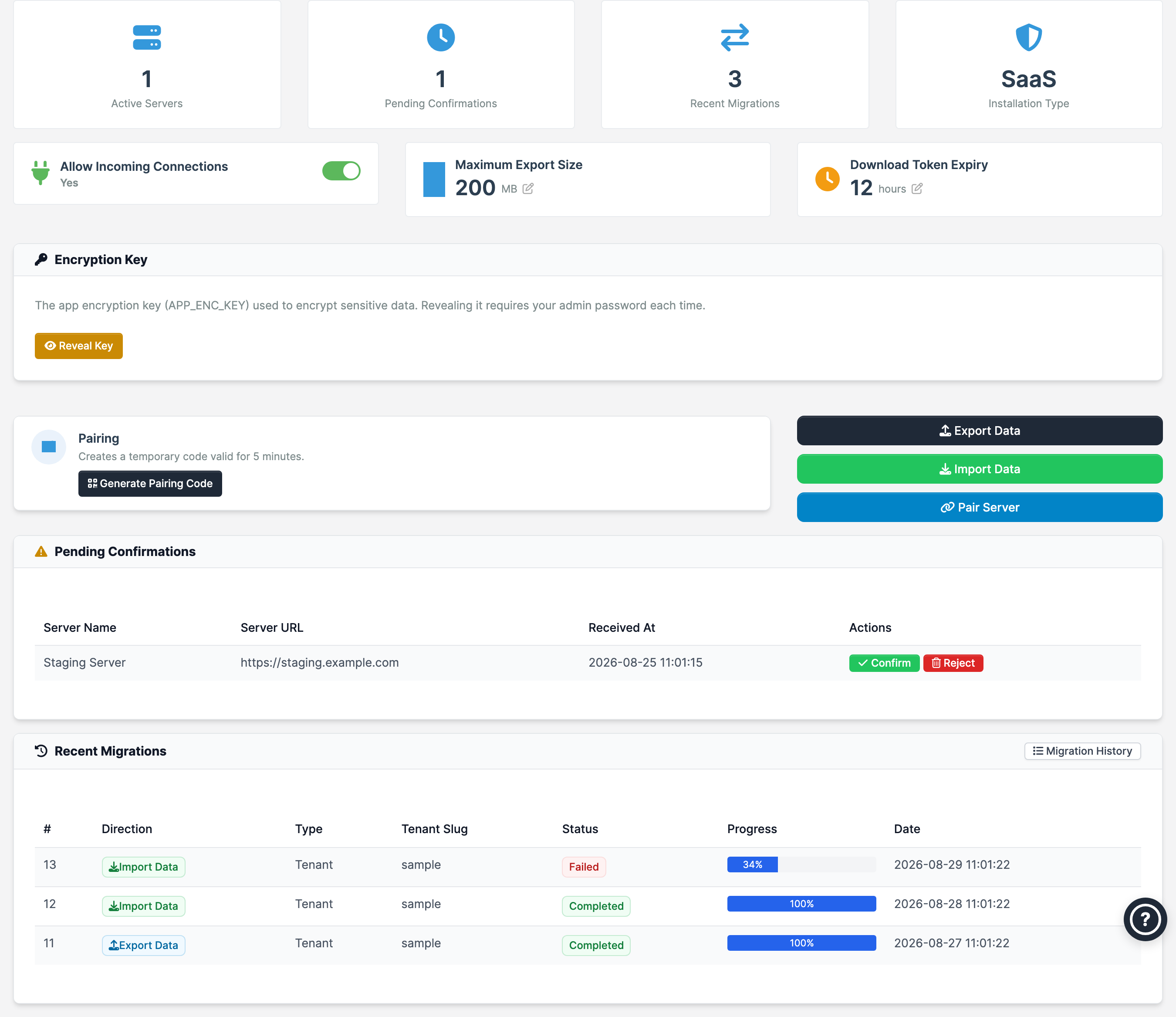
Dashboard
The dashboard gives you an overview of the installation and lets you configure it:
- Stat cards - Active servers, pending confirmations, recent migrations, and the installation type (SaaS or Standalone)
- Settings - Allow Incoming Connections, Maximum Export Size, and Download Token Expiry (editable inline, see below)
- Pairing widget - Generate a temporary pairing code to share with a remote admin
- Pending confirmations - Approve or reject incoming pairing requests
- Recent migrations - Latest runs with direction, status, and progress
Settings
The module settings are edited directly on the dashboard.

| Setting | Description |
|---|---|
| Allow Incoming Connections | Enable/disable whether other servers can send pairing requests and push data to this installation |
| Maximum Export Size | Maximum allowed export size in MB |
| Download Token Expiry | Hours before generated download tokens expire |
Encryption and keys
Your application encryption key (APP_ENC_KEY) encrypts sensitive values at rest. The module never needs it to be shared or revealed:
- Exports re-encode encrypted values with a fresh per-export key while the dump is written — a package never carries the installation's real key.
- Imports re-encrypt the transferred values under the destination's own key automatically.
- The only key a user ever handles is the per-export key, shown in Migration History details so you can copy it into the import form when moving a package manually.
See the Usage page for how the export key flows through a package.
Server pairing
Server-to-server features (push/pull) require both installations to be paired. Data transfer is not one-click automatic; pairing enables the secured request/download flow, and the package is transferred using signed, time-limited download links.
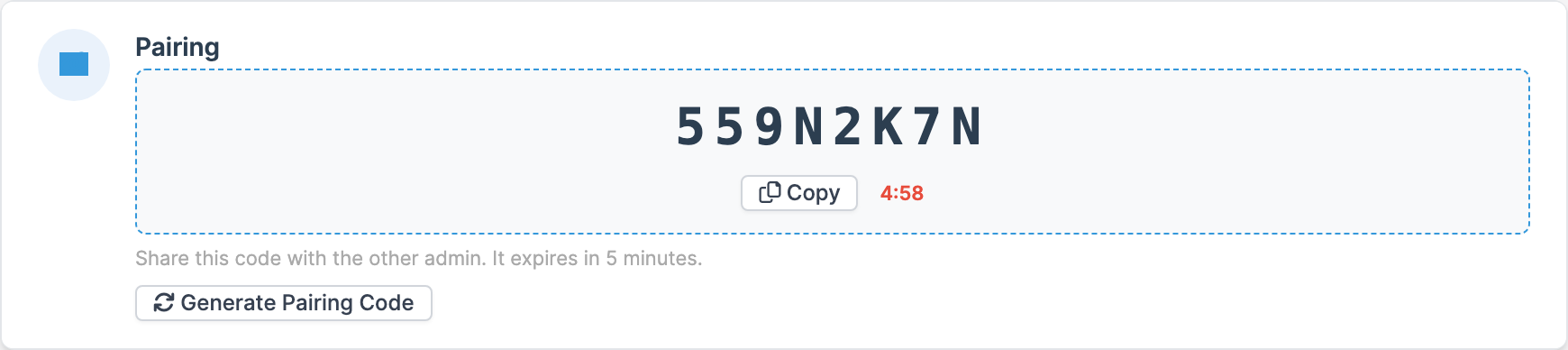
- On the installation that must be reachable: click Generate Pairing Code on the dashboard. An 8-character code is shown and expires in 5 minutes. Share it with the remote admin.
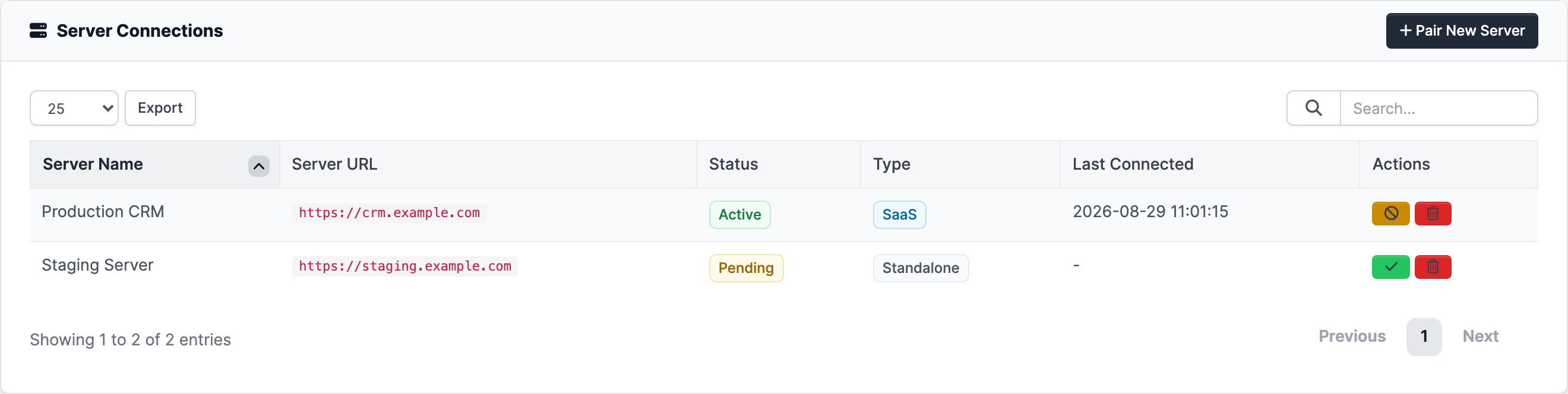
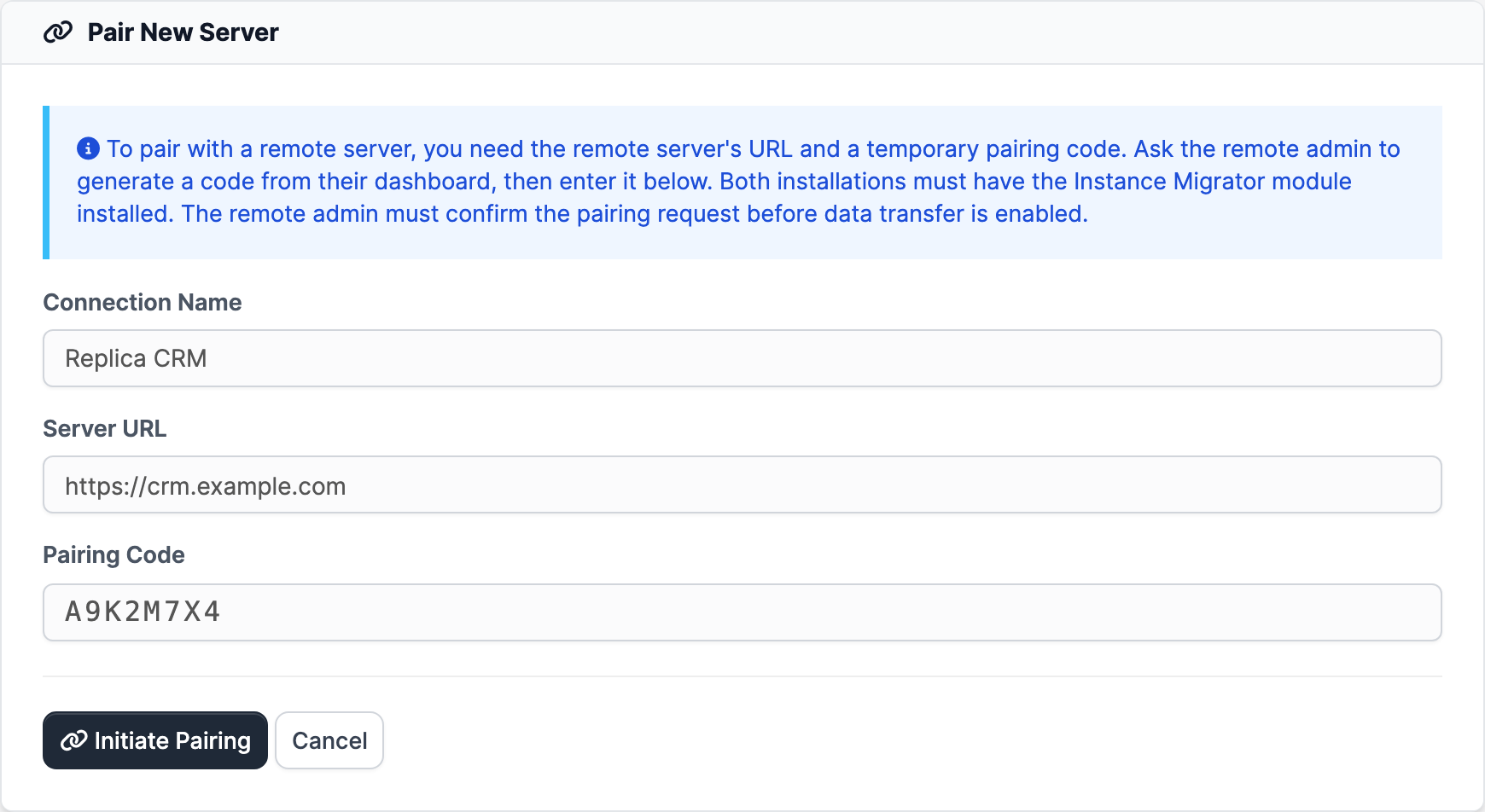
- On the other installation (the initiator): go to Migration Tools > Server Connections and click Pair Server. Enter a connection name, the remote server URL, and the 8-character pairing code.
- Back on the target dashboard, approve the request under Pending Confirmations.
The pairing is now active on both sides. Manage (revoke/delete) connections on the Server Connections page.
Notes: - Both installations must have the Instance Migrator module installed. - The remote URL must be publicly reachable (HTTPS in production). - Incoming pairing requests require Allow Incoming Connections enabled on the target.
Optional: translation of texts
Our module contains a localized file with all necessary strings in it, so you can translate them to your own language if needed or change them (customize). This file can be found under the module's folder and its /language/english/ subfolder.
You can create your own language folders there or override the language strings directly from your custom language file of Perfex's installation (link).