Usage
Exporting data
Open Migration Tools > Export Data to create an export package.
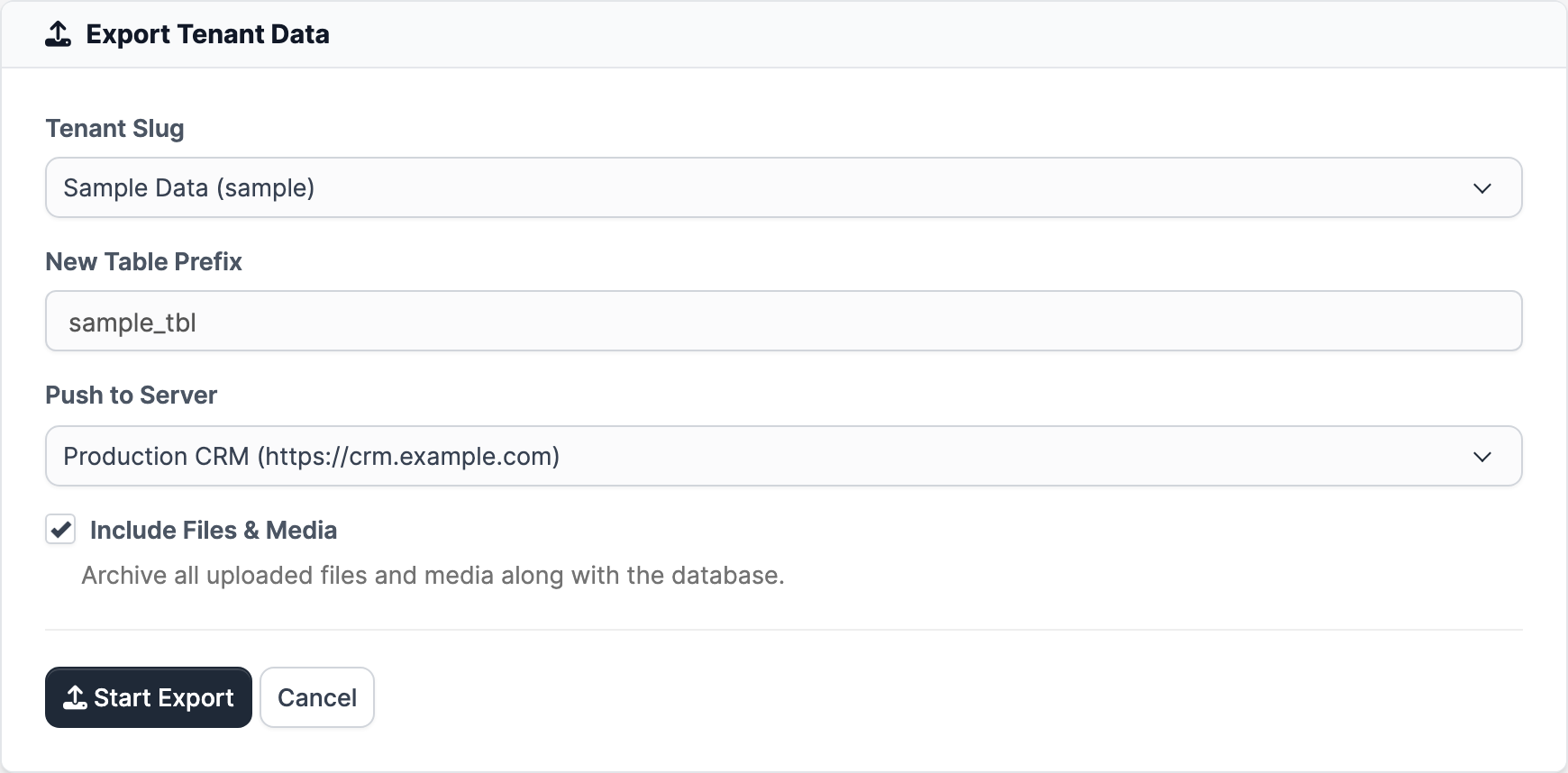
Configure the export options:
- Tenant Slug - SaaS master: choose the tenant to export. In a tenant context the slug is fixed. Standalone: optional.
- New Table Prefix - The prefix to apply on the destination (defaults to the current prefix).
- Push to Server - Optional: associate the export with a paired server for the pull flow.
- Include Files - Include a ZIP archive of the media directories (checked by default).
Click Start Export. Large exports run in the background with a live progress bar.
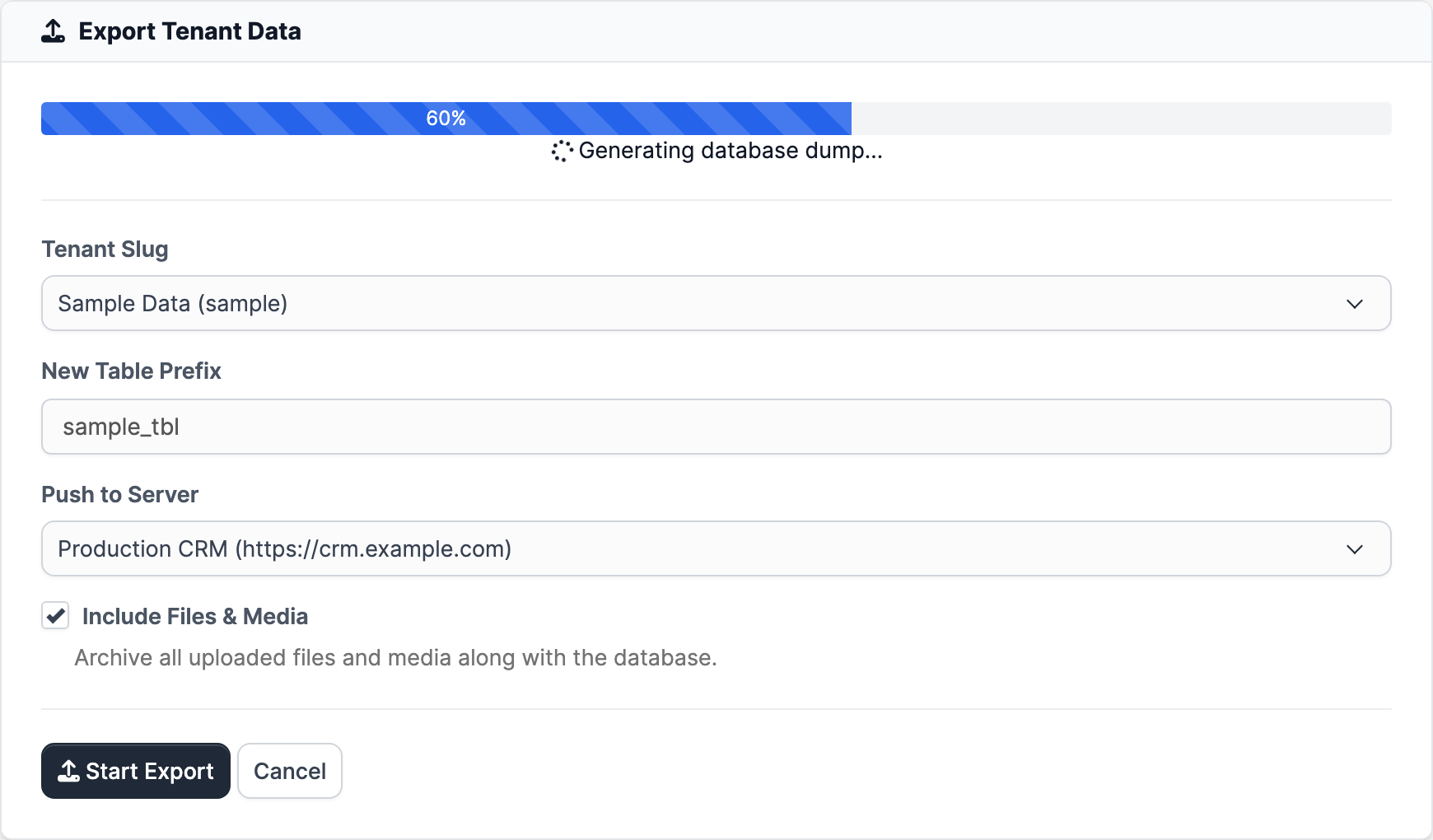
When complete, the package is listed in Migration History with its download links and the package encryption key.
How the export is built
- A migration record is created and a per-export temporary encryption key is generated and stored on the record.
- Encrypted values (options and database columns) are re-encrypted from the application key to a fresh per-export temporary key while the dump is written — the live database is never modified. The dump is therefore encoded with the export key, never the live app key.
- If enabled, the media archive is created (raw files, not encrypted).
- The package becomes available for download using signed, expiring tokens (limited by the Maximum Export Size and Download Token Expiry settings).
Importing data
Open Migration Tools > Import Data. Two methods are offered: Local Import (Upload) and Pull from Server (only when at least one paired server exists).
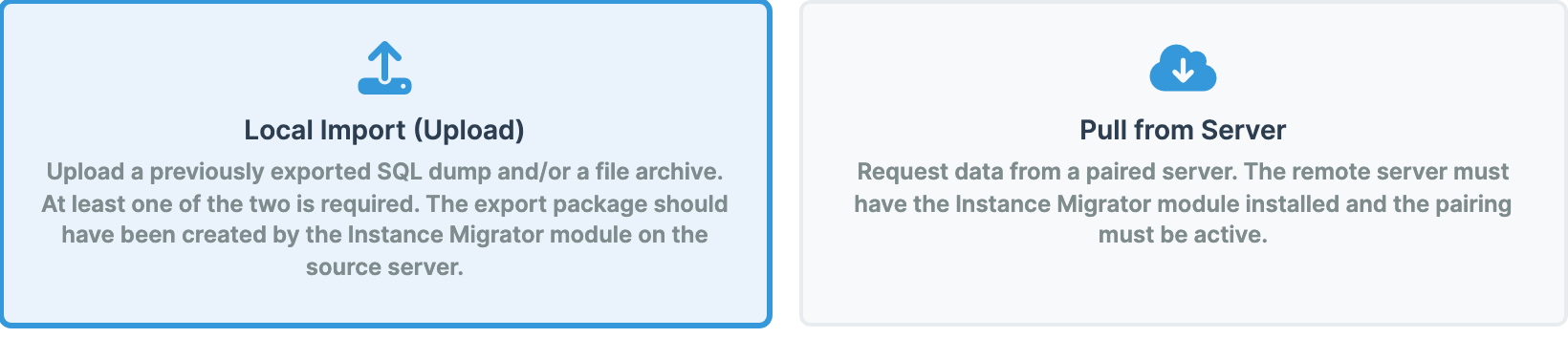
Local Import (Upload)
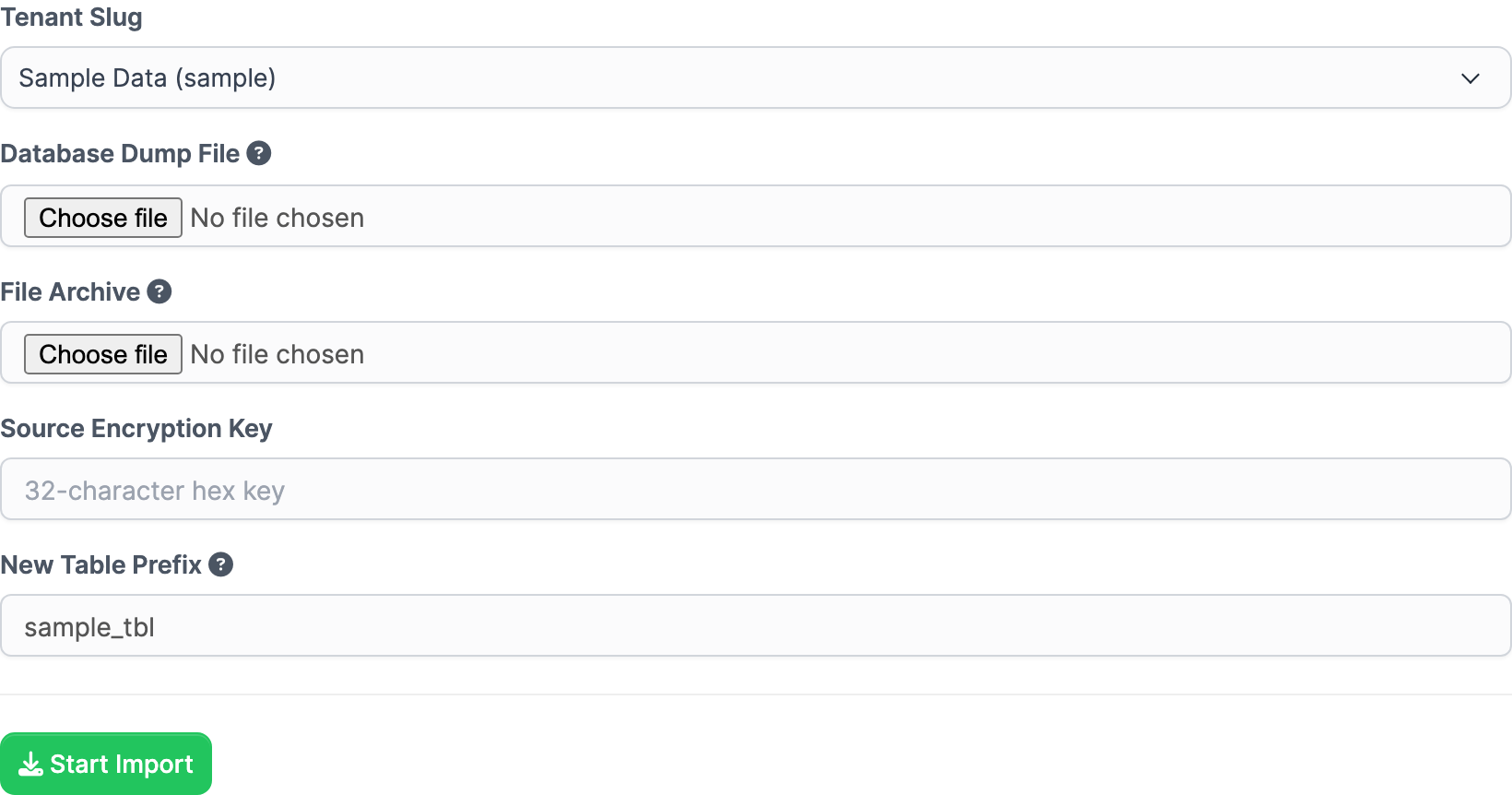
- Tenant Slug - SaaS master: choose the destination tenant. In tenant context it is fixed.
- Database Dump - Upload a
.sqlor.gzdump produced by this module. - File Archive - Upload the
.zipmedia archive. - Source Encryption Key - The key the exported data is encoded with (the export-generated key from the export record). At least one of the dump or the archive is required; the source key may be left empty only when both installations use the same key.
- New Prefix - The destination table prefix. It defaults to the current prefix and in SaaS mode is auto-computed from the chosen tenant slug. The source prefix is not entered manually: it is read from the module header written at the top of every SQL dump, which guarantees the prefix rewrite is applied exactly once.
Click Start Import (client-side validation requires a dump and/or archive). The import pipeline:
- Uploads are stored and validated.
- If a dump is present, it is imported into the destination database — through the Perfex SaaS tenant connection for tenant imports, or the current database for standalone imports — with prefix remapping and cleanup of the previous schema.
- If an archive is present, files are extracted and copied with path remapping.
- Re-encryption runs for every import type - all encrypted values in the imported database are decrypted with the source key and re-encrypted with the destination's application key. This covers standalone imports and SaaS tenant (DSN) imports.
- The run is recorded in Migration History with parsed metrics.
Notes: - A files-only import (no dump) requires the destination site/tenant database to already exist and be reachable. - A dump-only import (no files) is valid when no media needs to move.
Pull from Server
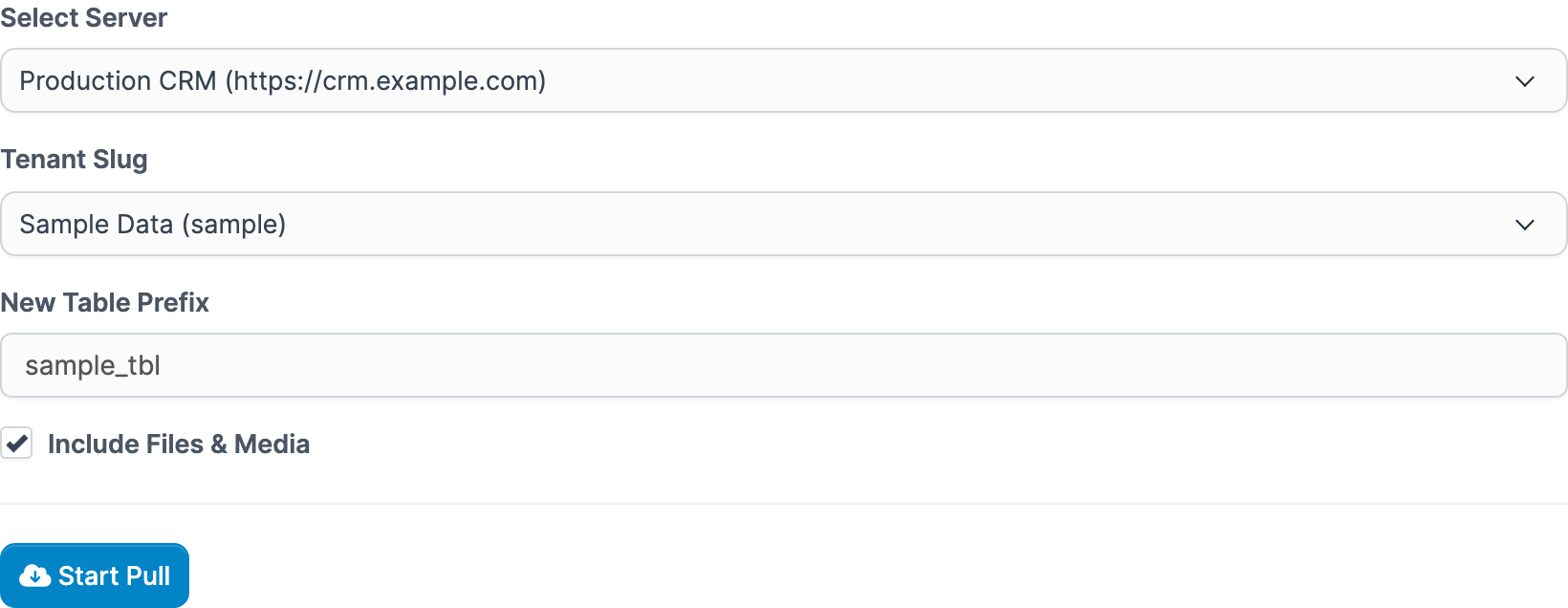
- Select a paired server.
- Enter the tenant slug to pull (in SaaS mode the destination tenant determines it).
- Set the New Prefix and whether to Include Files.
- Click Start Pull - a signed request is sent asking the remote server to prepare the export package.
- The remote prepares the package and replies with signed, expiring download links and the export encryption key.
- The initiator then downloads the dump (and the media archive), imports it into the destination - routed through the Perfex SaaS tenant connection in SaaS mode - re-keys the encrypted values to its own application key, and records the run as completed in its Migration History. The whole pull runs end-to-end in one request; larger exports need a generous PHP
max_execution_timeon the initiator.
Migration History
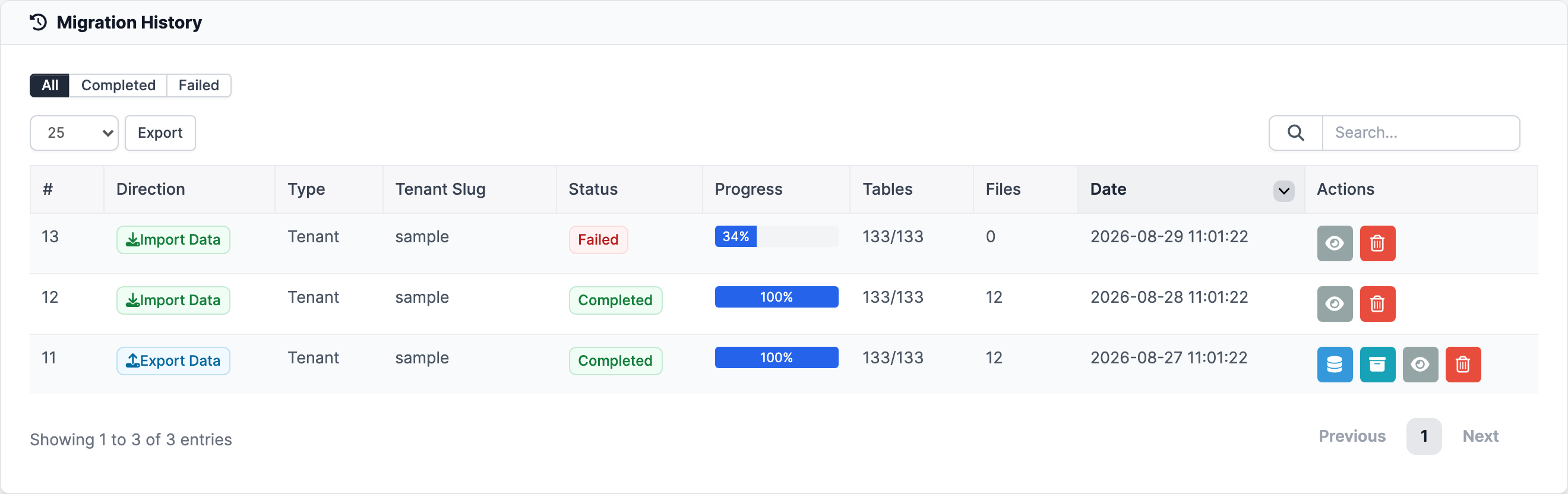
Migration Tools > Migration History lists all runs with direction (export/import), type, tenant slug, status, progress, and dates. Exports can be downloaded from here (SQL dump, media archive, and the encryption key).
Encryption re-keying
Your application encryption key is never shared or revealed by the module. Perfex encrypts sensitive values at rest using the application key and stores a random IV per value inline. The module re-encrypts these values on import so they decode correctly under the destination's key:
- Options table -
smtp_password,microsoft_mail_client_secret,google_mail_client_secret, and payment gateway encrypted fields (auto-detected). - Database columns -
tblleads_email_integration.password,tbldepartments.password,tblstaff.google_auth_secret,tblvault.password.
Raw media files are not encrypted.
Server-to-server communication
Server-to-server endpoints live at https://REMOTE_HOST/index.php/instance_migrator/api/<endpoint> (ping, handshake, pull, push, download). All requests except ping are signed with HMAC-SHA256 over METHOD\nPATH\nTIMESTAMP\nNONCE\nBODY using the shared connection secret and the X-SM-Signature, X-SM-Installation-Id, X-SM-Timestamp, and X-SM-Nonce headers. Timestamps older than 5 minutes and replayed nonces are rejected. Downloads additionally require a valid X-SM-Download-Token.
The API routes are automatically exempt from Perfex's CSRF check (the module ships the exempt URI list at modules/instance_migrator/config/csrf_exclude_uris.php), since requests authenticate with signatures rather than session CSRF cookies. If an older version of the module is installed on the remote server and the pairing screen shows a "419 Page Expired" error, that is Perfex's own CSRF rejection — update the Instance Migrator module on the remote so its API routes are excluded, and make sure you open the pairing page with the same URL format above. To sanity check the remote, open https://REMOTE_HOST/index.php/instance_migrator/api/ping in a browser; it must return a JSON payload.